How to Set Up a New Computer

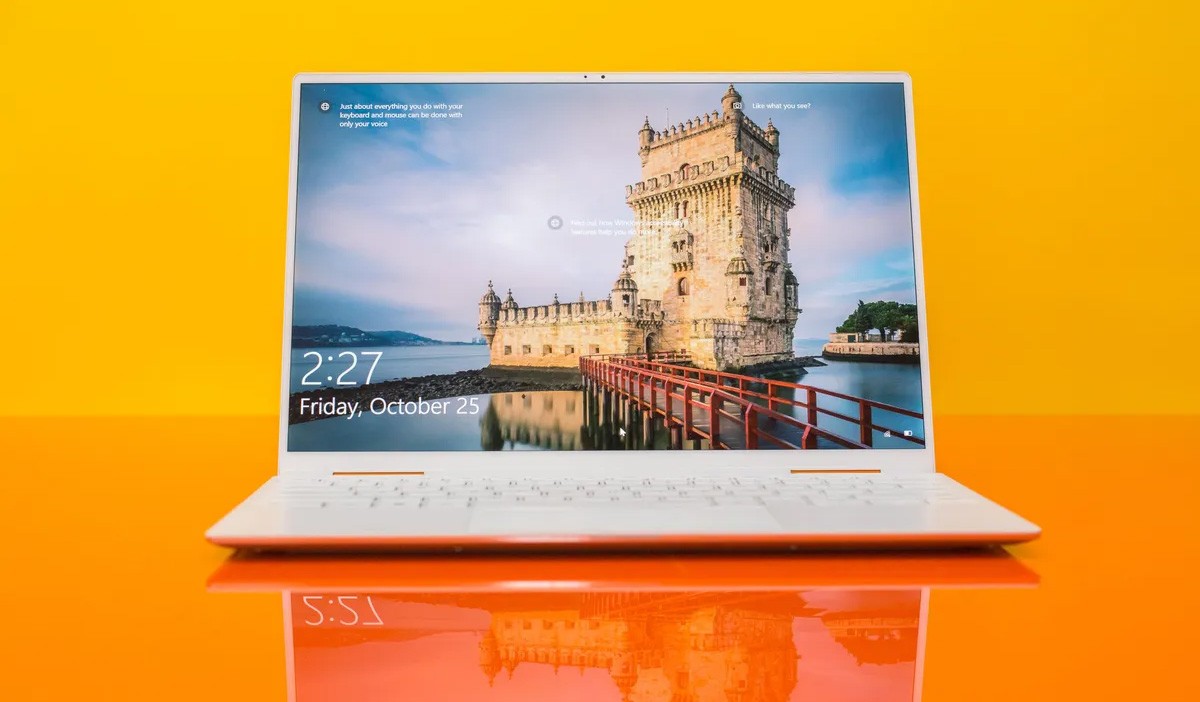
Setting up a new computer can be a daunting task, but it doesn’t have to be. With a few simple steps, you can have your new computer up and running in no time.
Step 1: Unpack Your Computer
The first step is to unpack your computer and remove it from the box. Be careful not to damage any of the components as you remove them.
Step 2: Find a Suitable Location for Your Computer
Once your computer is unpacked, you need to find a suitable location for it. The computer should be placed in a well-ventilated area that is free from dust and debris. You should also make sure that the computer is not placed in direct sunlight or near any heat sources.
Step 3: Connect Your Computer to the Monitor
If you are using a desktop computer, you will need to connect your computer to the monitor. The monitor will usually have a VGA, HDMI, or DisplayPort input. Connect the appropriate cable from the computer to the monitor.
Step 4: Connect Your Computer to the Keyboard and Mouse
The keyboard and mouse will usually connect to the computer using USB cables. Connect the appropriate cables from the keyboard and mouse to the computer.
Step 5: Connect Your Computer to the Internet
If you want to connect your computer to the internet, you will need to connect it to a router or modem. The router or modem will usually have an Ethernet port. Connect an Ethernet cable from the computer to the router or modem.
Step 6: Turn on Your Computer
Once everything is connected, you can turn on your computer. The computer will start up and go through a series of steps to set itself up. Once the setup is complete, you will be able to use your computer.
Step 7: Install Your Software
Once your computer is set up, you will need to install any software that you want to use. You can install software from a CD or DVD, or you can download it from the internet.
Step 8: Create a Backup of Your Data
It is important to create a backup of your data in case your computer crashes or is lost or stolen. You can create a backup by using an external hard drive, a cloud storage service, or a USB flash drive.
Step 9: Customize Your Settings
Once you have installed your software and created a backup of your data, you can customize your settings. You can change the desktop wallpaper, the screen resolution, and the default programs.
Step 10: Enjoy Your New Computer!
Once you have completed all of these steps, you can enjoy your new computer. Use it to surf the internet, play games, or create documents. With a little care, your computer will last for many years to come.
Additional Tips
Here are a few additional tips for setting up a new computer:
- Read the manual that came with your computer. The manual will contain important information about your computer, such as how to set it up and how to use it.
- Keep your computer clean. Dust and debris can build up inside your computer and cause it to overheat. Use a can of compressed air to blow out the dust every few months.
- Back up your data regularly. A backup is a copy of your data that you can use to restore your computer if it crashes or is lost or stolen. Back up your data to an external hard drive, a cloud storage service, or a USB flash drive.
- Keep your computer up to date. Microsoft releases updates for Windows on a regular basis. These updates can fix security vulnerabilities and improve the performance of your computer. Install updates as soon as they are available.
- Use a firewall. A firewall is a program that protects your computer from unauthorized access. A firewall is especially important if you connect your computer to the internet.
- Use antivirus software. Antivirus software can protect your computer from viruses and other malware. Antivirus software is especially important if you download files from the internet.
By following these tips, you can help to ensure that your new computer will last for many years to come.





Motorola Moto G14 Specs, Price, and Best Deals
The Motorola Moto G14 is a mid-range smartphone that was released in August 2023. It has a…